
Welcome to the Quick Booking Guide
This guide will take you through each page of the quick booking process and detail every container within said pages.
First from our dashboard we need to access the quick booking page.
Don't see the quick booking link?
You may not have the permissions to access, your company administrator is in charge of your permissions.

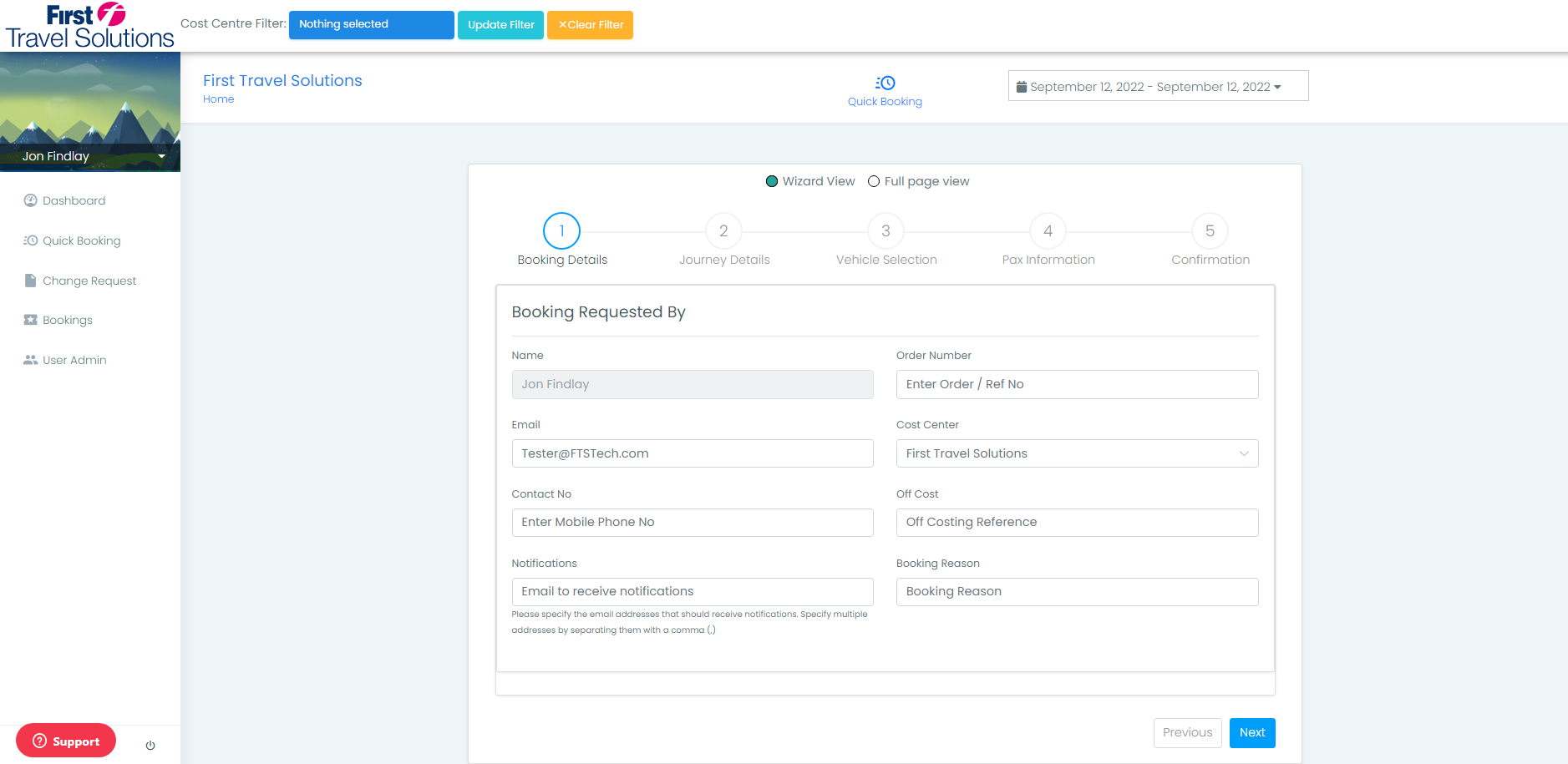
Booking Details
Name,
This will automatically fill from your profile if your name is spelt wrong you will need to get in touch with your company administrator to ensure that your account has the correct details.
Order Number,
If you have the order number that this booking is in reference to you may input it here, this field is not mandatory, you may proceed without having it filled.
Email,
Your email address goes in this field.
Cost Center,
Select the cost center from the drop down that you are allocating this booking to.
Contact No,
Input the contact number for contact
Example: +44 7557 758748
Notifications,
In this section we can assign 1+ email addresses to receive notifications for the booking, commonly we assign the booker and the lead passenger into this section. This can be done by separating the emails with a "," please see an example below
Booker@FTSTech.com,LeadPax@FTSTech.com
Booking Reason,
You may enter the reason for the booking into this section
Journey Details
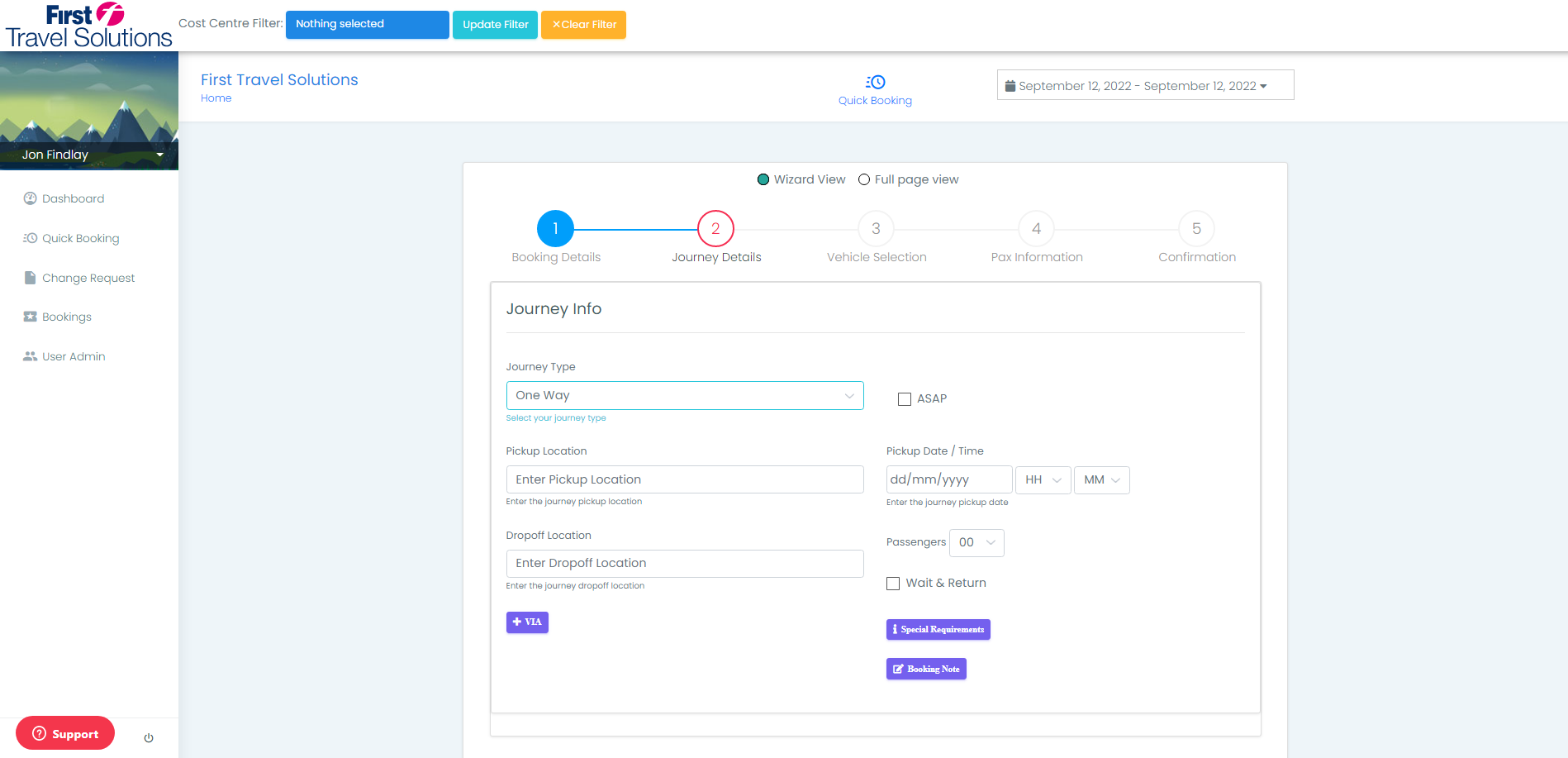
This is a section of the booking that will change intuitively based on your initial selection of journey type furthermore, your selection of the via option will also change the process.
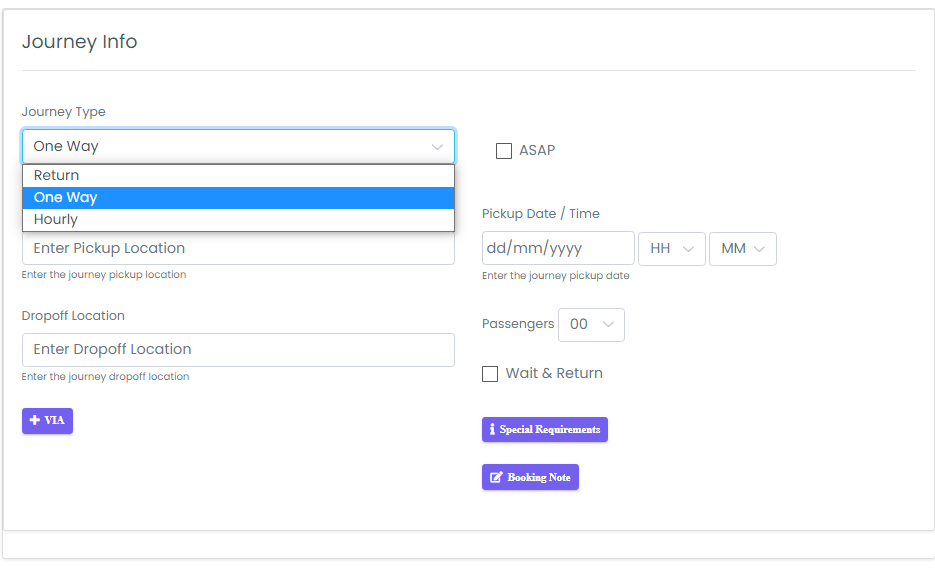
Journey Type,
This is a dropdown menu that allows for the selection of 3 choices :
One Way,
This selection gives a pickup location and drop-off point and and VIA's as necessary.
Return,
This selection implements a secondary time for a return process to take place.
Hourly,
This selection allows for hourly transportation to take place.
Pickup Location,
You can start typing the address here and the system will intuitively find the address.
Please note the address MUST have a post code
Drop-off Location
You can start typing the address here and the system will intuitively find the address.
Please note the address MUST have a post code
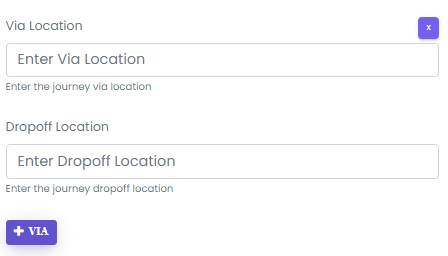
Via
When selected this will add an additional location section to allow for an additional stopping point.
ASAP Selection
This is a toggle option meaning if selected it is turned on and deselected it is turned off and will tell the system that this is to be actioned as soon as possible.
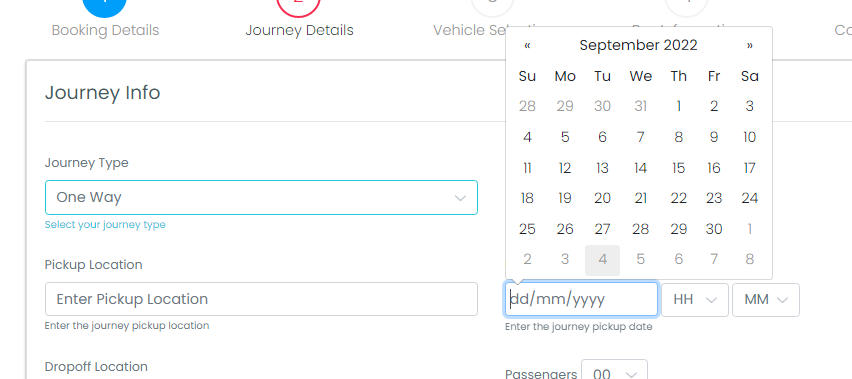
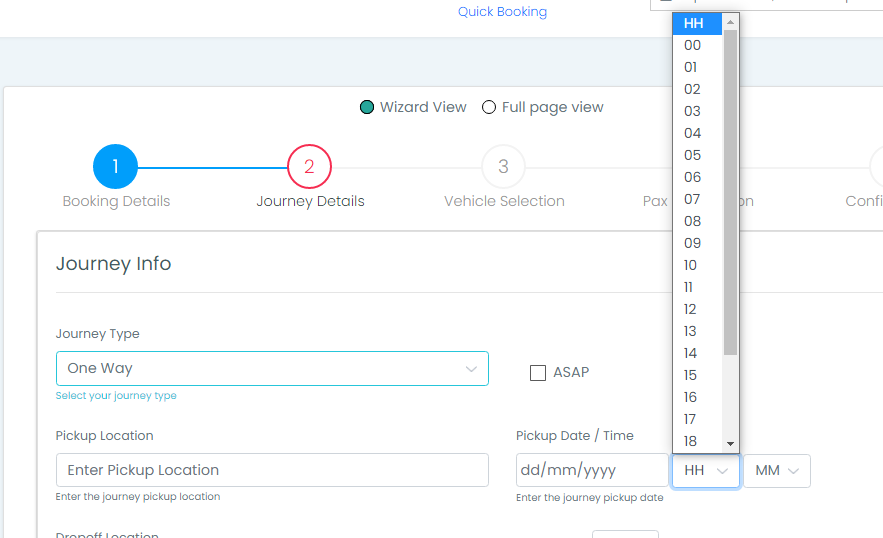
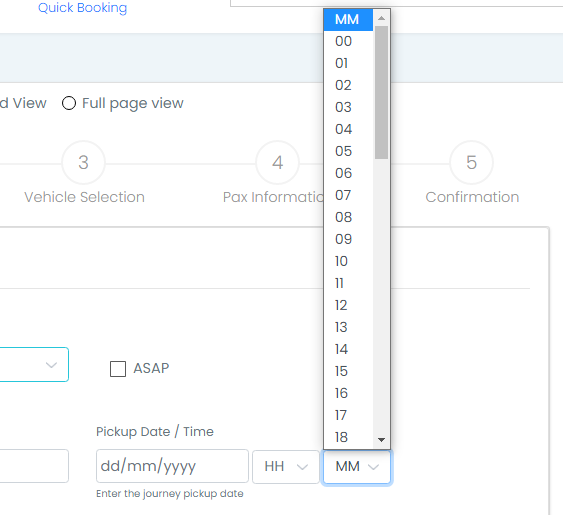
Pickup Date / Time
The pickup date / time is as said and needs to filled out as displayed.
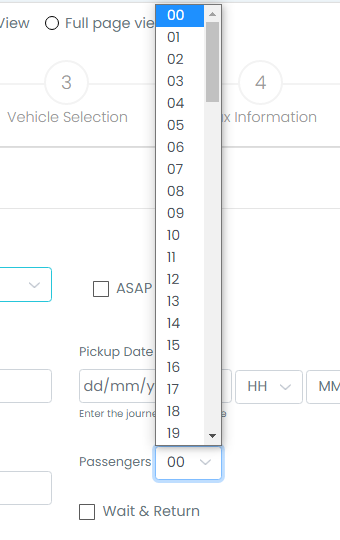
Passengers
This is a dropdown selection that allows you to choose the amount of passengers that the journey will have.
Wait & Return
Selecting this will allow for the journey to have the driver wait and return.
Special Requirements
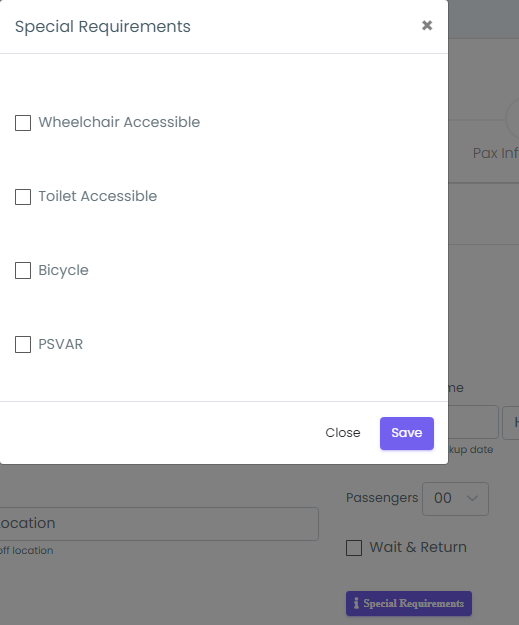
Special Requirements allows for you to add additional requirements that may be necessary for the trip please see the special requirements below.
Wheelchair
Bicycle
PSVAR
Toilet
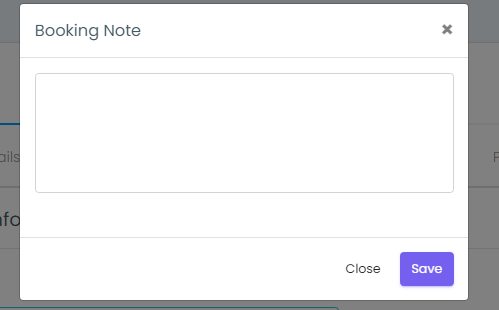
Booking Notes
You may also add in some booking notes should you require.
Vehicle Selection
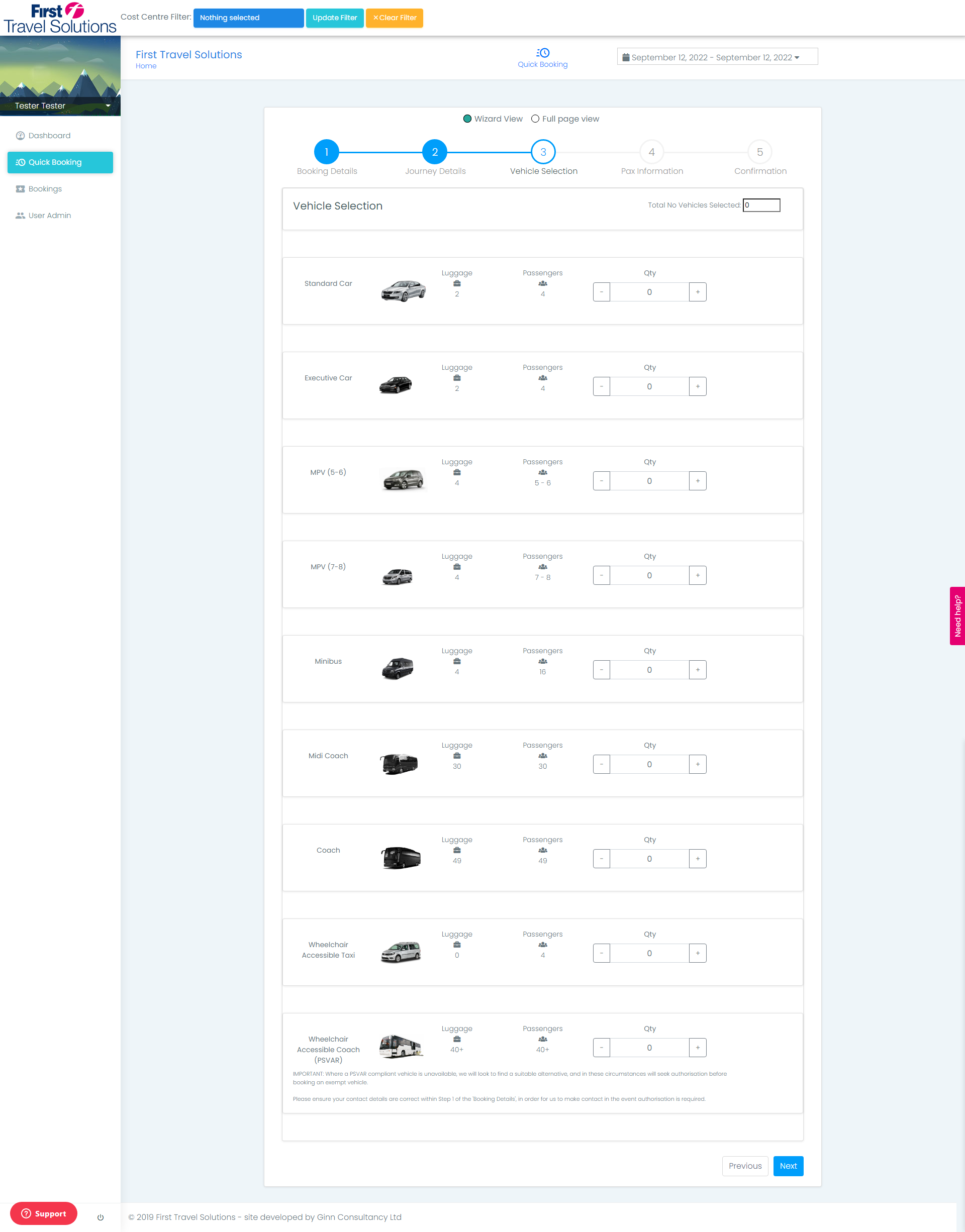
This section of the booking process allows for the selection of vehicles.
Simply select the amount of vehicles you require and select next
Pax Information
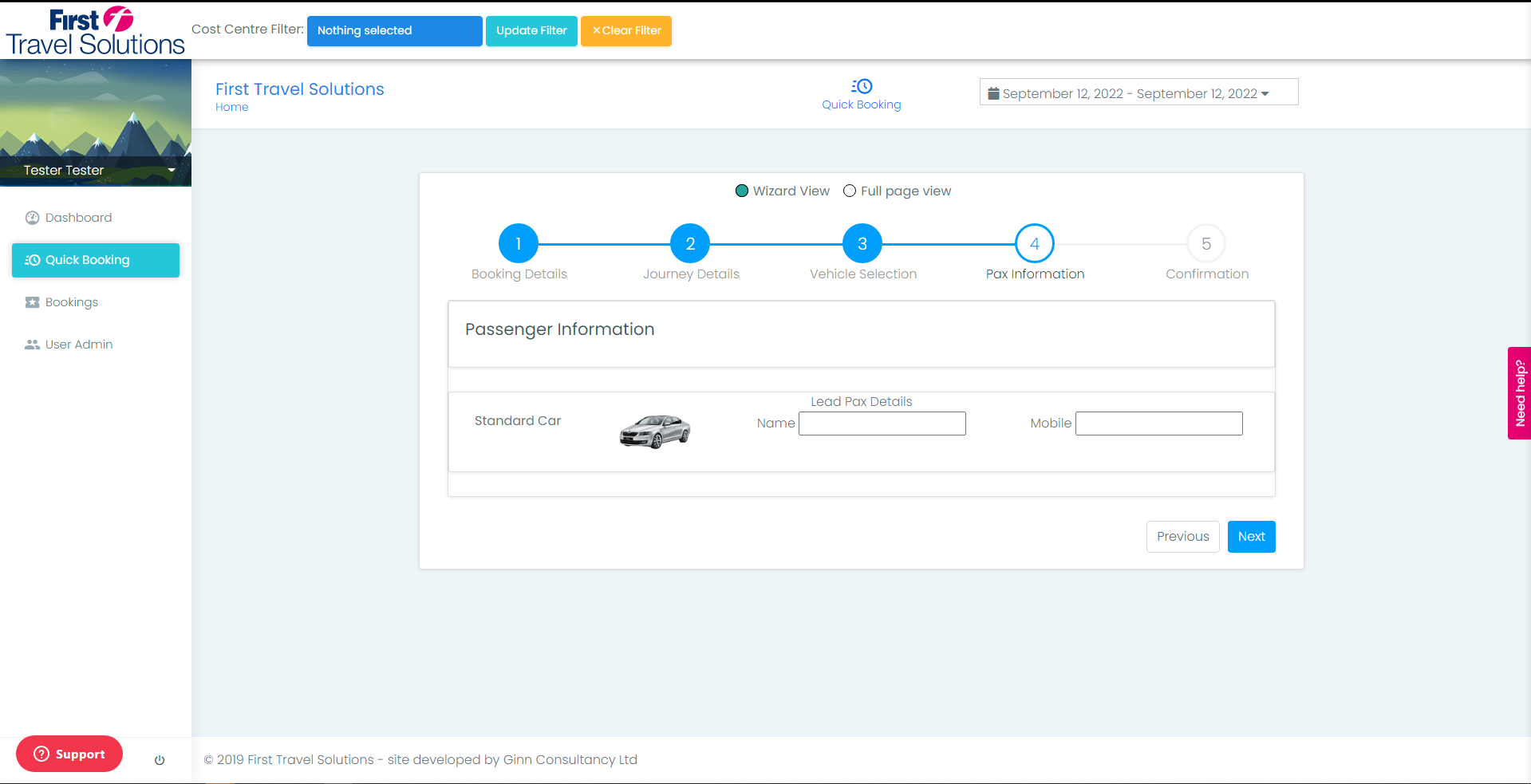
Enter the lead passenger information, and mobile number
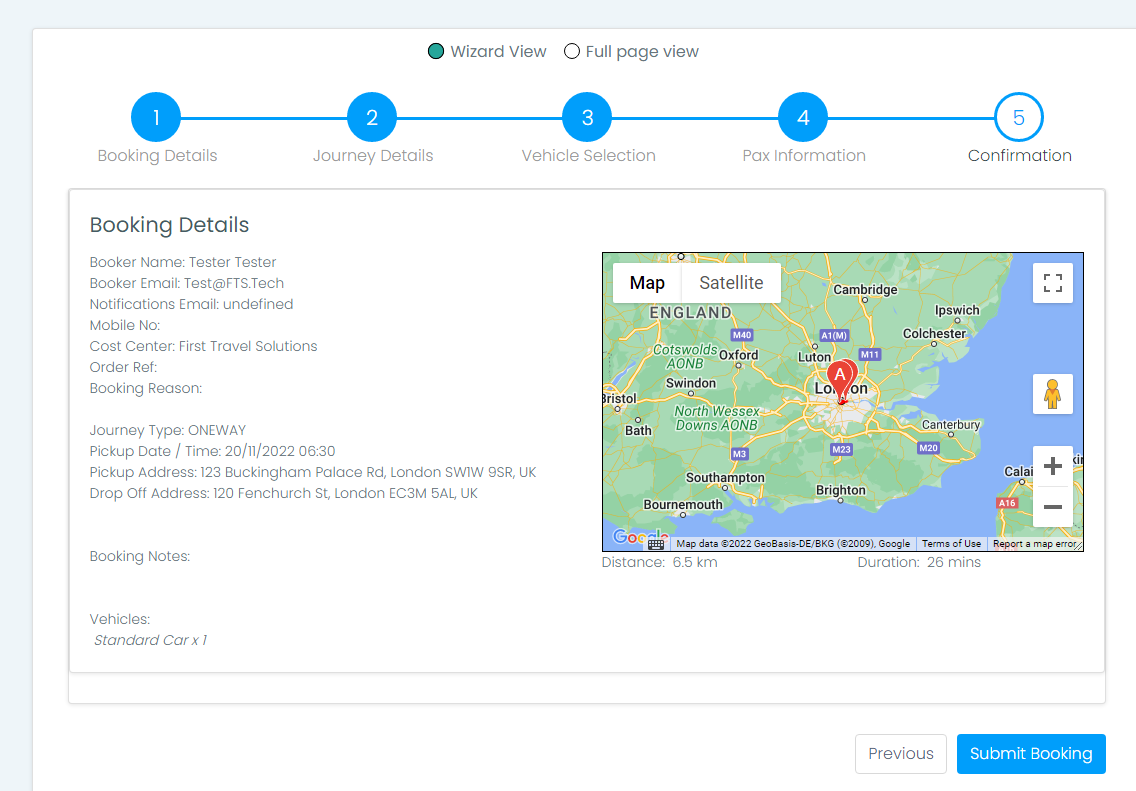
Confirmation
Overview your booking on the confirmation screen, if you are happy select submit booking
Any further issues please submit a ticket to our helpdesk
Thank you for your time
Comments
0 comments
Please sign in to leave a comment.