
Welcome to the Dashboard
This will be your main hub for the client portal. From this dashboard you can access whatever you need by using the below notes.
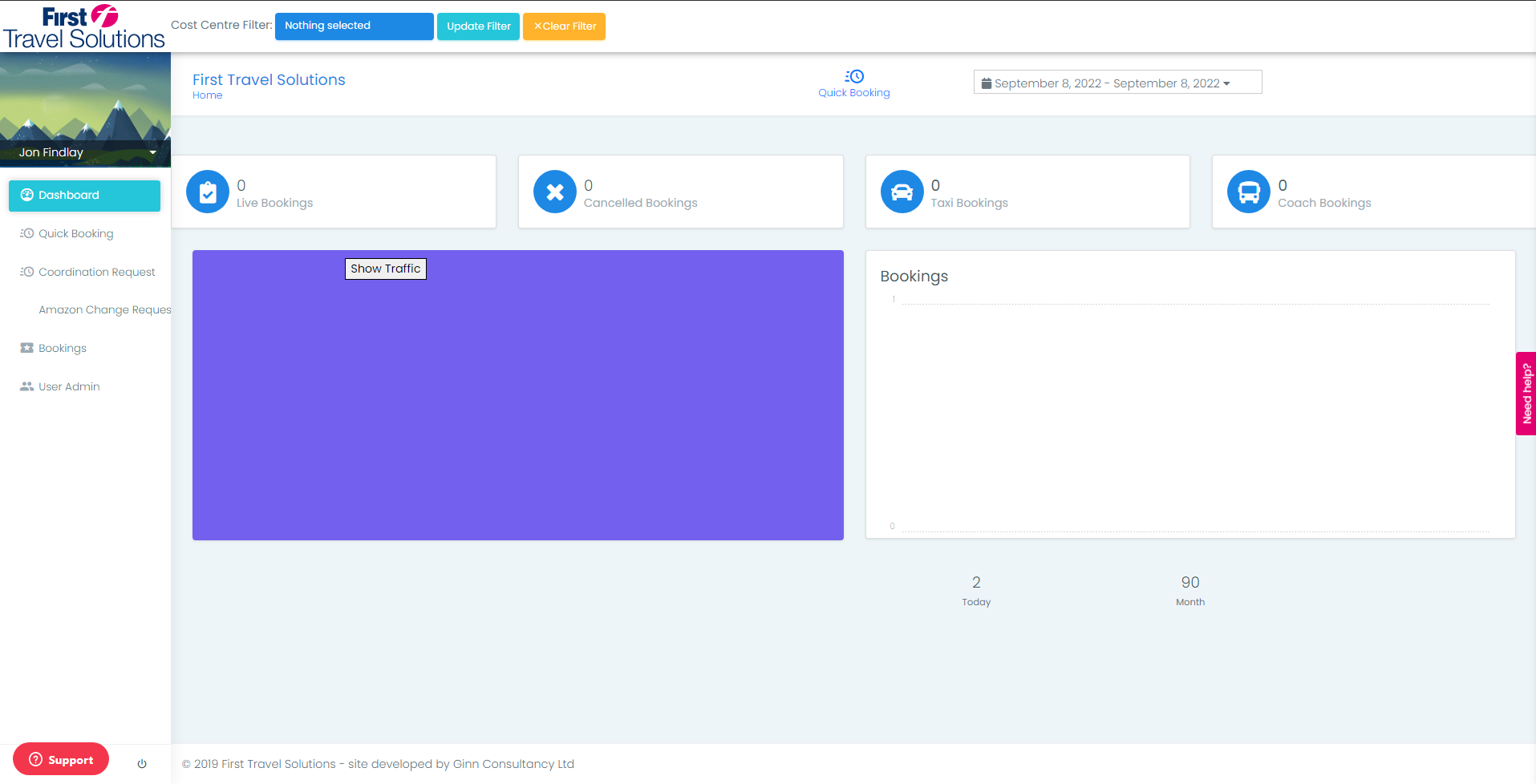
Cost Center filter
This is a global filter for the entire site which allows you to view specific cost center bookings, making the portal tailored to your viewing needs.

Quick booking widget
This is a quick access widget to access the Quick Booking page.

Date filter
This is another global filter for the entire site which allows you to view specific dates using either the predefined date selections or custom dates.

Livebookings
This is a tile which outlines the number of live bookings in operation, with a quick access navigation search filter to view the live bookings within the bookings page.

Cancelled bookings
This is a tile which outlines the number of cancelled bookings within the date range filtered, with a quick access navigation search filter to view thecancelled bookings within the bookings page.

Taxi bookings
This is a tile which outlines the number of taxi bookings within the date range filtered.

Coach bookings
This is a tile which outlines the number of coach bookings within the date range filtered.

Booking timeline
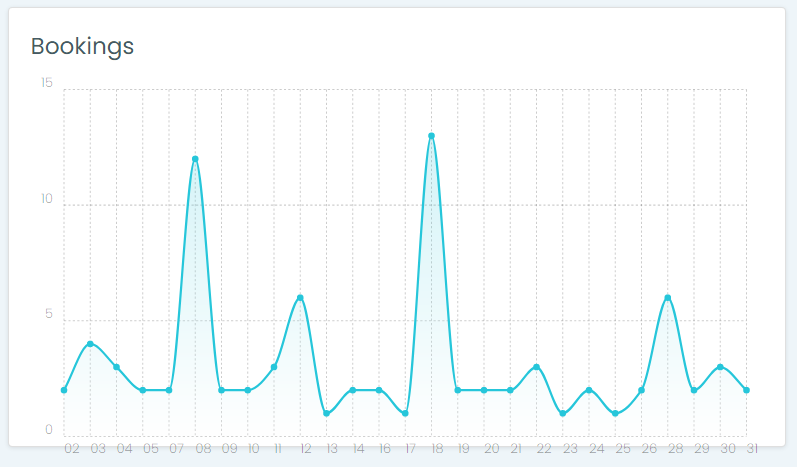
This is a line graph visual which provides analytical insights into the number of bookings confirmed within the date range filtered.
Map View
This is an interactive map which provides insights into the live bookings. Here you can gain real time information on the service, the percentage of the scheduled service completed and the latest reported status by our operational control team.
Please refer to the vehicle tracking section of this guide for more information on how to use this feature.
Profile / Logout
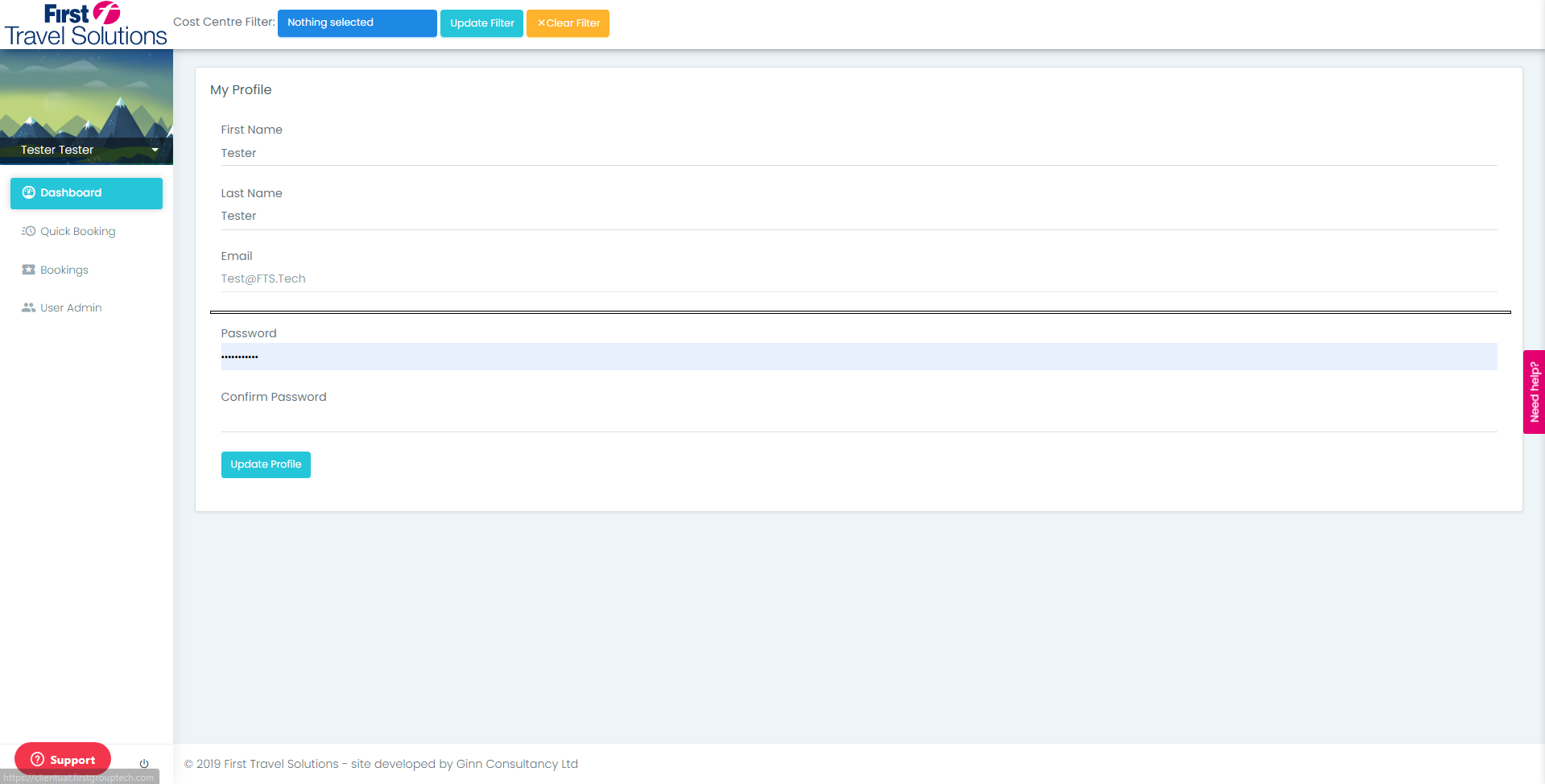
My Profile
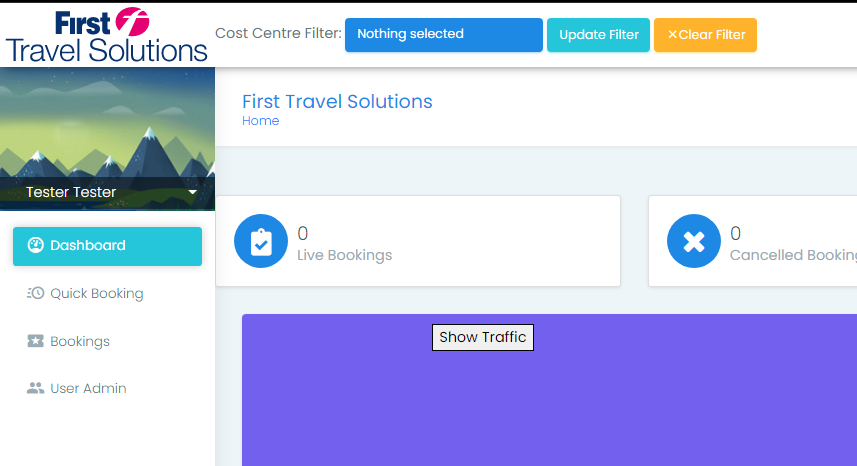
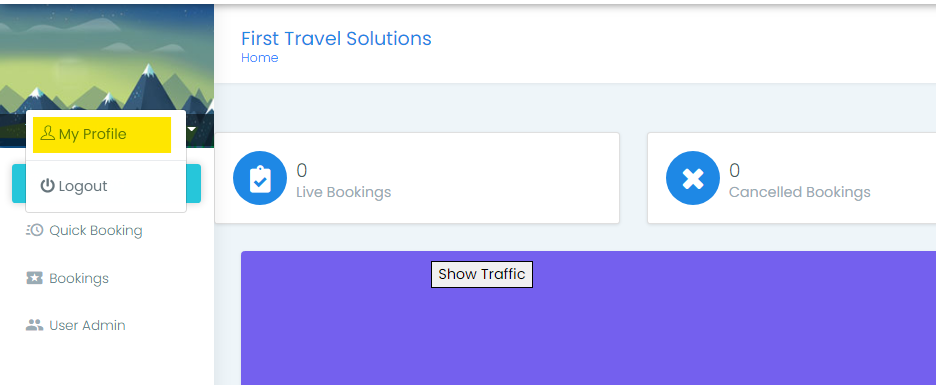
To access your own profile you must first select your name in the top left of the screen over the image.
Upon clicking this click my profile.
Welcome to your profile.
From here you can see your information and you may edit your password at will. Please note that to change your name / email address you will need to refer to your company administrator.
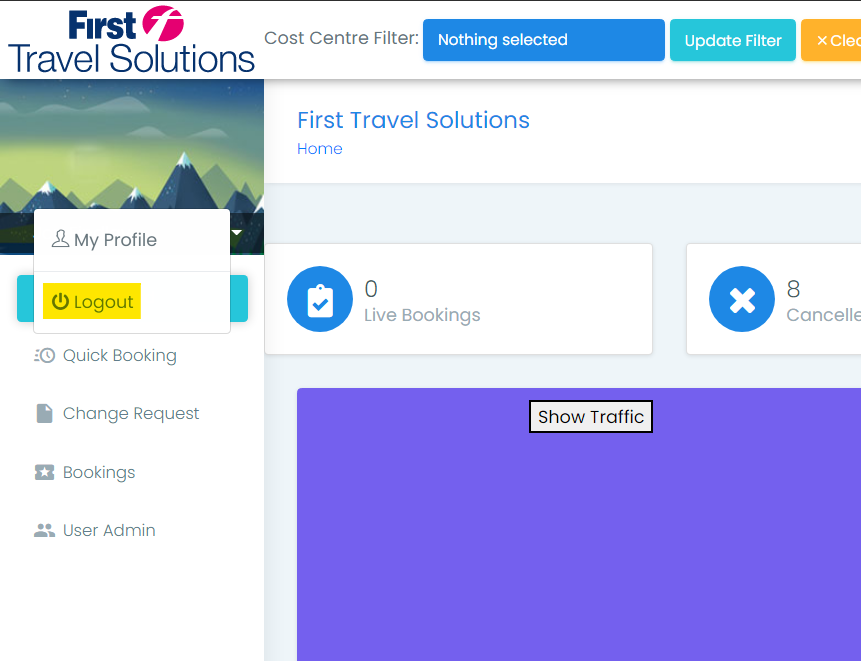
Logout
To logout you must click the drop down where your name is in the top left of the screen and select the logout button.
Shown below.
Navigation
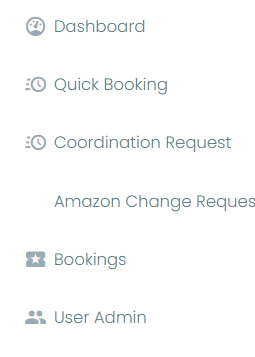
Dependant on permissions you can use the navigation panel on the left side of the screen to access:
- Dashboard
- Quick Booking
- Coordination Request
- Change Request
- Bookings
- User Control
Comments
0 comments
Please sign in to leave a comment.